
My TV wasn't particularly old, and there was nothing wrong with the panel.
The problem was everything around it.
Over time, the home screen had accumulated recommendation rows, promotional content, streaming apps I never opened, vendor services I didn't understand, and background processes that existed simply because they shipped with the TV.
The hardware was still perfectly capable. But using it no longer felt particularly clean.
I use a television for a small number of things: open a streaming app, watch something, occasionally switch inputs, and turn it off. I don't need the home screen to behave like a content-discovery platform.
So before considering new hardware, I tried something else:
remove as much unnecessary software around the experience as possible - carefully.
Not with a custom ROM. Not by rooting the TV. And not by downloading a random "debloat list" and running it blindly.
I connected an AI coding agent to the TV over ADB and asked it to investigate the device first.
That distinction ended up being the most important part of the whole exercise.
Inspect first, change second
Android TV and Google TV contain packages whose names often tell you very little about what they actually do.
A package that looks disposable may control part of the remote or input selector. A vendor service that appears unnecessary may re-enable other components during boot. Something that looks like telemetry may be coupled to functionality you actually use.
So I didn't give the agent a predetermined list of packages to remove.
I told it what I actually use, what must continue working, and what it was never allowed to do.
Then I let it inspect the TV.
No uninstall. No root. No heroics.
The rules were intentionally conservative.
Nothing could be uninstalled. System applications could only be disabled in a reversible way. No rooting, bootloader unlocking, custom firmware, service-menu experiments, or undocumented vendor writes.
Every change needed an undo path.
And the agent wasn't allowed to make dozens of changes and ask me at the end whether the TV still worked.
It had to work in small batches.
After each batch I physically tested the things that mattered: Home, the remote, Inputs/Source, HDMI, streaming, video, audio, the on-screen keyboard, Settings, and the features I had explicitly chosen to keep.
Only after those checks passed could it continue.
This is slower than running a giant shell script.
That is the point.
Establish a baseline first
Before disabling anything, the agent recorded the current state: installed packages, packages that were already disabled, running processes, memory information, available storage, and relevant device information.
The goal wasn't to manufacture an impressive benchmark. It was to have enough evidence to understand what changed and enough state to reverse it.
The agent then divided possible cleanup candidates into three broad groups:
- things that were reasonable candidates based on my usage;
- things whose usefulness depended on features I might use;
- things that were critical, unclear, or simply not worth touching.
That third group matters most.
The package name is not documentation
One of the most useful lessons was how misleading vendor package names can be.
Some components that looked disposable were tied to normal television functionality. Later, after a reboot, the TV deliberately re-enabled a couple of services we had disabled. The agent traced that behaviour back to another vendor component.
At that point we could have kept digging.
We didn't.
If the manufacturer clearly expected those services to exist, the small theoretical saving wasn't worth destabilizing the television.
That became the rule for the whole experiment:
The goal isn't to disable the largest possible number of packages. The goal is to remove what you don't need without making the TV worse.
This is also why I'm not publishing my final disabled-package list as a recipe.
It describes one television, one firmware version, and one usage pattern.
Copy the process, not the list.
Replacing the part I disliked most
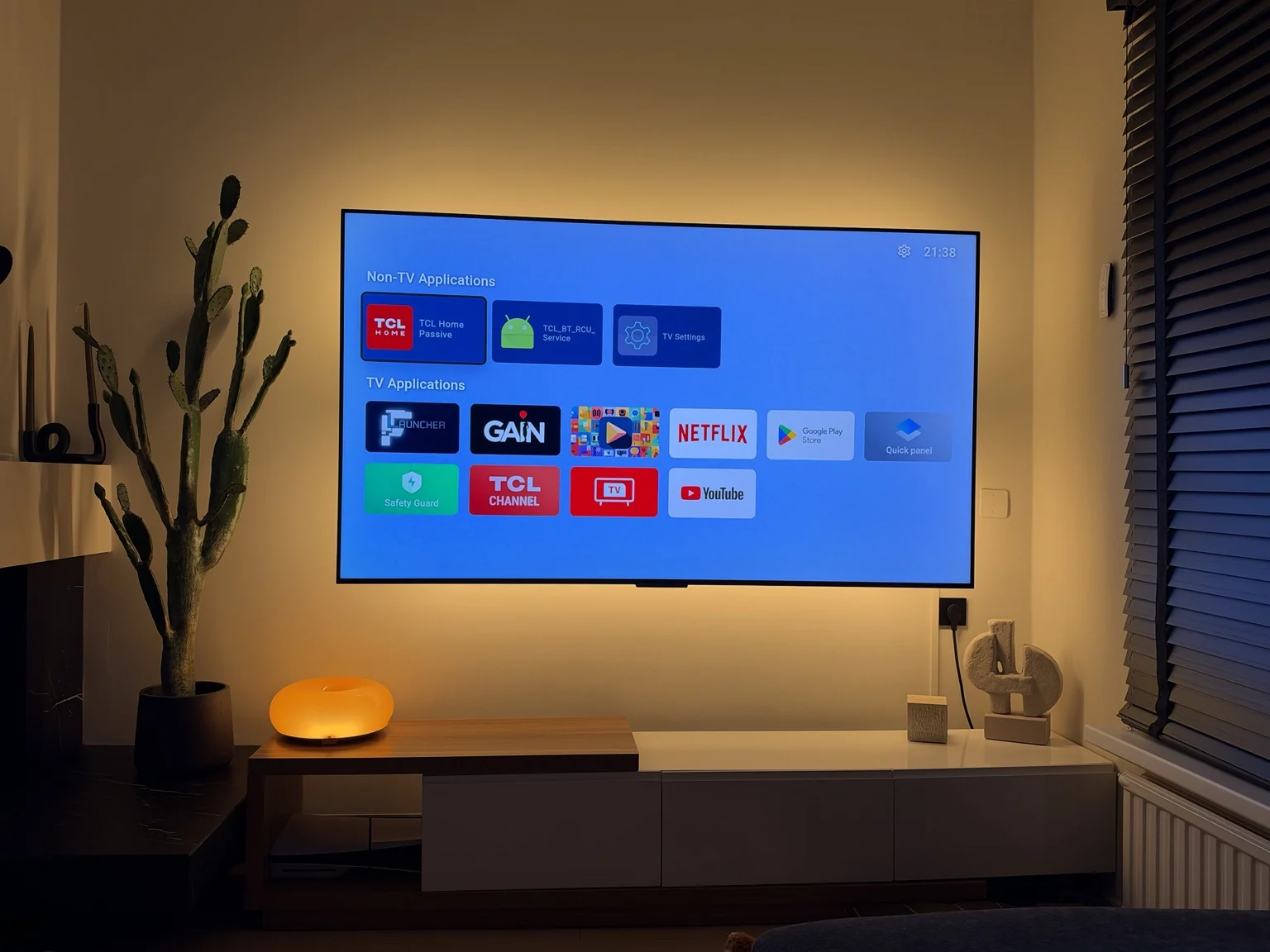
Removing unused software helped, but the largest visible change came from replacing the stock Google TV home screen.
The default experience was the thing I wanted to escape in the first place: recommendations, content rows, and things competing for attention before I'd even opened an app.
I replaced it with a minimal launcher that essentially gives me what I wanted from the beginning:
my applications.
Nothing else.
This was also one of the riskiest steps, so it came last.
Android needs a working HOME application. The replacement was installed, opened, and verified first. The agent checked that Android recognized it as a HOME activity and prepared the recovery path before the original launcher was disabled.
Then I tested Home, apps, Settings, Inputs, and HDMI again.
Only after all of that worked did we reboot.
The replacement survived the reboot.
That was the moment the television started to feel genuinely different.
What actually improved
There were measurable changes, but I don't think the most interesting result is a benchmark.
Cache cleanup recovered roughly 435 MB of storage.
Available memory increased by roughly 70 MB in the immediate measurements.
I also reduced Android's window, transition, and animator duration scales from 1.0 to 0.5. That doesn't make the processor twice as fast; it simply makes navigation feel more immediate.
The raw RAM comparison needs a caveat. A TV measured after a long uptime and one measured shortly after reboot are not equivalent conditions. Swap usage, caches, and post-boot background work can distort a simple before/after number. The replacement launcher also consumes memory of its own.
So I wouldn't describe the result as "I freed X MB and made the TV Y percent faster."
The improvement is simpler:
there is less software doing things I don't want, and the path between turning on the TV and opening an app is much smaller.
That is noticeable every time I use it.
Then I looked at the picture
Once the software side was stable, I used the same method on the picture settings.
This was deliberately a separate phase.
Modern televisions contain service menus, panel configuration, white-balance controls, HDR and Dolby Vision data, and vendor-specific calibration that an AI agent should not casually experiment with.
So the rule stayed the same:
read first; don't guess.
The agent navigated only the normal user-facing Picture menu and recorded the existing SDR settings. It was explicitly forbidden from entering service menus, touching white balance or RGB gain/offset, modifying panel configuration, or writing undocumented vendor settings.
Instead of manually changing twenty sliders, I started from the television's Movie preset.
That single change did most of the work. It reduced unnecessary processing, removed excessive sharpening and motion smoothing, and moved the image toward a more natural baseline.
After switching the preset, the settings were read again before anything else was changed.
For my SDR setup, only three additional processing controls needed to be disabled:
| Setting | Final |
|---|---|
| Black Stretch | Off |
| Dynamic Brightness | Off |
| Digital Noise Reduction | Off |
These are not universal calibration values.
Another TV may expose different controls, and even another unit of the same model can behave differently. I also left HDR and Dolby Vision alone rather than copying SDR settings into modes designed for different content.
This wasn't calibration.
It was simply removing processing I didn't want.
Try It on Your Own TV
You don't need my scripts, package list, model, firmware, or configuration.
In fact, I recommend not copying them.
Let the agent inspect your TV and build a plan around the apps and features you actually use.
Setup
1. Turn on Developer Options
Settings → System → About
Select Build and press the remote's OK button seven times.
2. Turn on debugging
Settings → System → Developer options → USB debugging
Enable it. If your TV also has Wireless debugging, enable that too.
3. Find the TV's local IP address
Settings → Network & Internet → Status
Note the TV's local IP address. Your computer and TV need to be on the same local network.
4. Open Claude Code or Codex
Copy the prompt below, replace the [FILL THIS IN] fields with your own TV details, and paste it into the coding agent.
Menu names can vary slightly by manufacturer and Android version.
The Prompt
The prompt below intentionally contains no package list or model-specific assumptions. It makes the coding agent discover your device and stop for physical verification at the points where automation alone isn't enough.
MY TV

Brand / model:
[FILL THIS IN]

TV IP address:
[FILL THIS IN]

Apps and features I need to keep:
[FILL THIS IN]

Optional features I know I do not use:
[FILL THIS IN]

I want you to safely inspect, clean up and optimize my Android TV / Google TV over ADB.

Run the commands yourself from my computer and explain what you are doing in plain language as you go. Treat everything under MY TV as hints from me, not verified facts: inspect the connected device before changing anything, and do not assume it matches another model or firmware.

BEFORE YOU START
- Check whether ADB and the required tooling are installed. If not, install the appropriate tooling for my operating system.
- Connect over ADB to the TV IP address under MY TV. If it is missing or the connection fails, ask me for it. If the TV requires an authorization dialog or wireless-debugging pairing code, stop and tell me exactly what I need to approve.
- Read the actual brand, model and Android version from the device. If they do not match MY TV, tell me before continuing.
- If the apps and features under MY TV are missing or unclear, ask me before changing anything.

SAFETY RULES
1. Do not root the TV, unlock the bootloader, flash firmware, enter a service menu, or modify system/vendor files.
2. Do not uninstall system packages. Prefer reversible per-user disabling:
   pm disable-user --user 0 <package>
   Every disabled package must have a corresponding restore command:
   pm enable <package>
3. Take a read-only baseline before making changes. Record at least:
   - device and Android information;
   - system packages;
   - packages already disabled before we started;
   - running processes;
   - memory information;
   - available storage.
   Save the baseline locally.
4. Discover what packages do before proposing that they be disabled. Do not rely on package names alone. Use package metadata, services, activities and dependencies where useful.
5. Classify candidates into:
   - safe candidates based on what I listed under MY TV;
   - depends on whether I use the feature;
   - critical, uncertain or system-level: do not touch.
6. Never disable an unidentified or uncertain package merely because it looks unnecessary.
7. Work in small batches of no more than 10 packages. Show me each proposed batch and why each package is a candidate before applying it.
8. After every batch, STOP and ask me to physically test the TV. Include, where applicable:
   - Home;
   - remote control;
   - Inputs / Source;
   - HDMI switching;
   - video playback;
   - audio;
   - on-screen keyboard;
   - Settings;
   - every app and feature I listed under MY TV as needed.
   Do not continue until I confirm the batch works.
9. Keep a local log of every modification, its original state, why it was changed and exactly how to undo it. Generate any measurement and restore scripts you need yourself.
10. If something breaks, restore the entire most recent batch first. Only then isolate the problematic package one at a time.
11. Record current animation-scale values. If appropriate and after showing me the change, set window, transition and animator duration scales to 0.5. Keep the original values for restoration.
12. If cache cleanup is useful, first determine the syntax supported by this Android build. Do not guess.
13. Stability is more important than maximizing the number of disabled packages.

HOME SCREEN
If I want to replace the stock home screen:
- do this only after package cleanup is stable;
- have me install and open the replacement launcher first;
- verify that Android recognizes it as a HOME activity;
- prepare and verify a recovery path before disabling the existing launcher;
- never leave the TV without a working HOME application;
- stop and have me test the Home button before rebooting;
- after reboot, verify the replacement launcher again.

REBOOT AND VERIFICATION
Only reboot after all approved batches have passed testing.
After reboot:
- reconnect over ADB;
- verify that the TV really rebooted;
- check whether any disabled packages were automatically re-enabled;
- investigate why before attempting to disable them again;
- do not fight vendor services merely to maximize the disabled-package count;
- repeat the baseline measurements.
Explain limitations in before/after comparisons, including uptime, swap, caches and normal post-boot background activity.

OPTIONAL PICTURE QUALITY PASS
Only after the cleanup is complete, ask whether I want to continue with picture settings. If I say yes:
1. Treat this as a separate task.
2. Start with a read-only inventory of the normal user-facing Picture menu.
3. Do not enter service menus or expert calibration, and do not modify white balance, RGB gain/offset, panel configuration, EDID data, HDR/Dolby Vision calibration files, or undocumented vendor settings.
4. Do not copy calibration values from another television.
5. Record the current SDR picture mode and normal user-facing settings before changing anything.
6. Prefer a natural Movie/Film-style preset as a starting point if one exists, but first make sure changes are scoped to the current input/source rather than every input.
7. After changing the preset, re-read its values before touching individual controls. The preset may already correct most processing.
8. Prefer disabling unnecessary dynamic processing, excessive sharpening and aggressive motion smoothing instead of changing calibration controls.
9. Keep SDR, HDR10 and Dolby Vision separate. Do not copy SDR values into HDR modes.
10. Log every picture change and its restore value.
11. Stop and ask me to visually verify the picture before making additional changes.

WHEN FINISHED
Give me:
- a concise before/after summary;
- what was disabled and why;
- anything that re-enabled itself after reboot;
- memory/storage observations with appropriate caveats;
- the final launcher state;
- the final picture changes, if we did them;
- one clear way to restore everything.

Do not optimize beyond the point where the remaining packages or settings are uncertain.
The most important word in that prompt is stop.
Stop before touching something uncertain.
Stop after each batch.
Stop before replacing the launcher.
Stop before rebooting.
Stop before picture adjustment turns into fake calibration.
An autonomous coding agent is very good at continuing.
For this kind of job, knowing when it should not continue is more valuable.
Less TV software is surprisingly nice
The final result isn't a radically different television.
That's exactly why I like it.
I turn it on and see a small collection of applications instead of a wall of things somebody would like me to watch. Navigation feels quicker. The apps I care about still work. HDMI still works. The remote still works. The picture is more natural.
And if I change my mind, the work is reversible.
There is something satisfying about extending the useful life of hardware not by upgrading it, but by asking a simpler question:
How much of the software between me and what I actually want to do can I remove?
In this case, quite a lot.
Reference
The initial idea of using an AI coding agent with ADB for a careful, reversible Android TV cleanup was inspired by Cobanov's Android TV cleanup guide. I extended the workflow for my own setup with staged physical verification, rollback checks, launcher migration, before/after measurements, and a separate picture-settings pass.